

TiviMate IPTV Player: How to Install & Setup on Any Device (2026)
How to Install and Setup TiviMate IPTV Player on Any Device (2026 Guide)
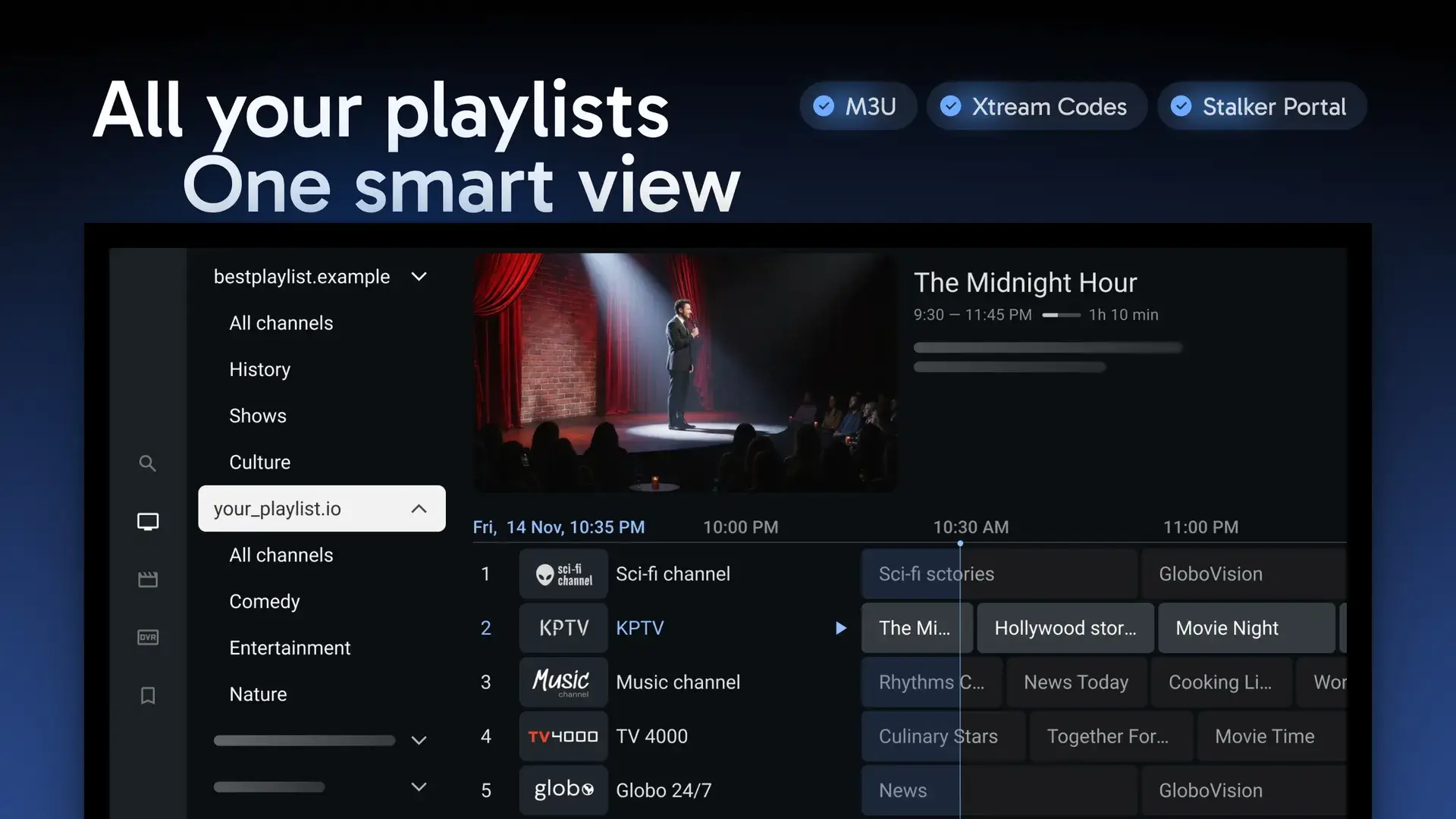
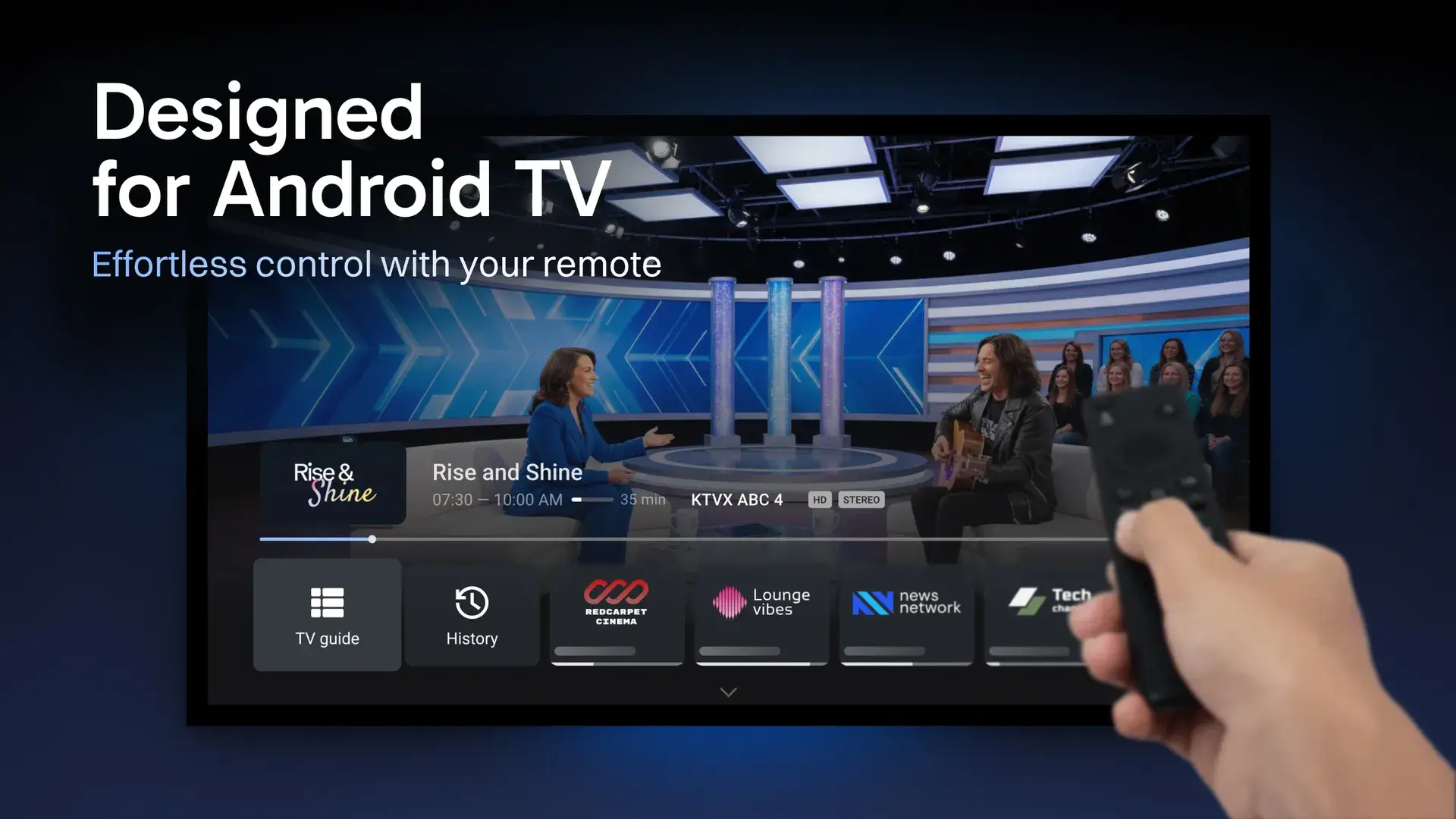
If you are looking for the absolute best way to stream live TV, movies, and sports, you need a powerful player. TiviMate IPTV Player is widely recognized as the gold standard in the streaming world. With its modern cable-style interface, ultra-fast channel zapping, and multi-screen capabilities, it transforms your basic setup into a premium entertainment hub.
In this ultimate guide, we will walk you through how to install and configure the TiviMate IPTV Player app on any device, ensuring a buffer-free viewing experience.
What is TiviMate IPTV Player?
Before we dive into the installation, it is crucial to understand that TiviMate is purely a media player. It does not provide any channels, playlists, or subscriptions content on its own. To use it, you must connect it to an external, high-quality IPTV service provider.
| Feature | Free Version | Premium Version |
| Interface | Modern TV Grid | Fully Customizable UI |
| Playlists | Max 1 Playlist | Unlimited Playlists |
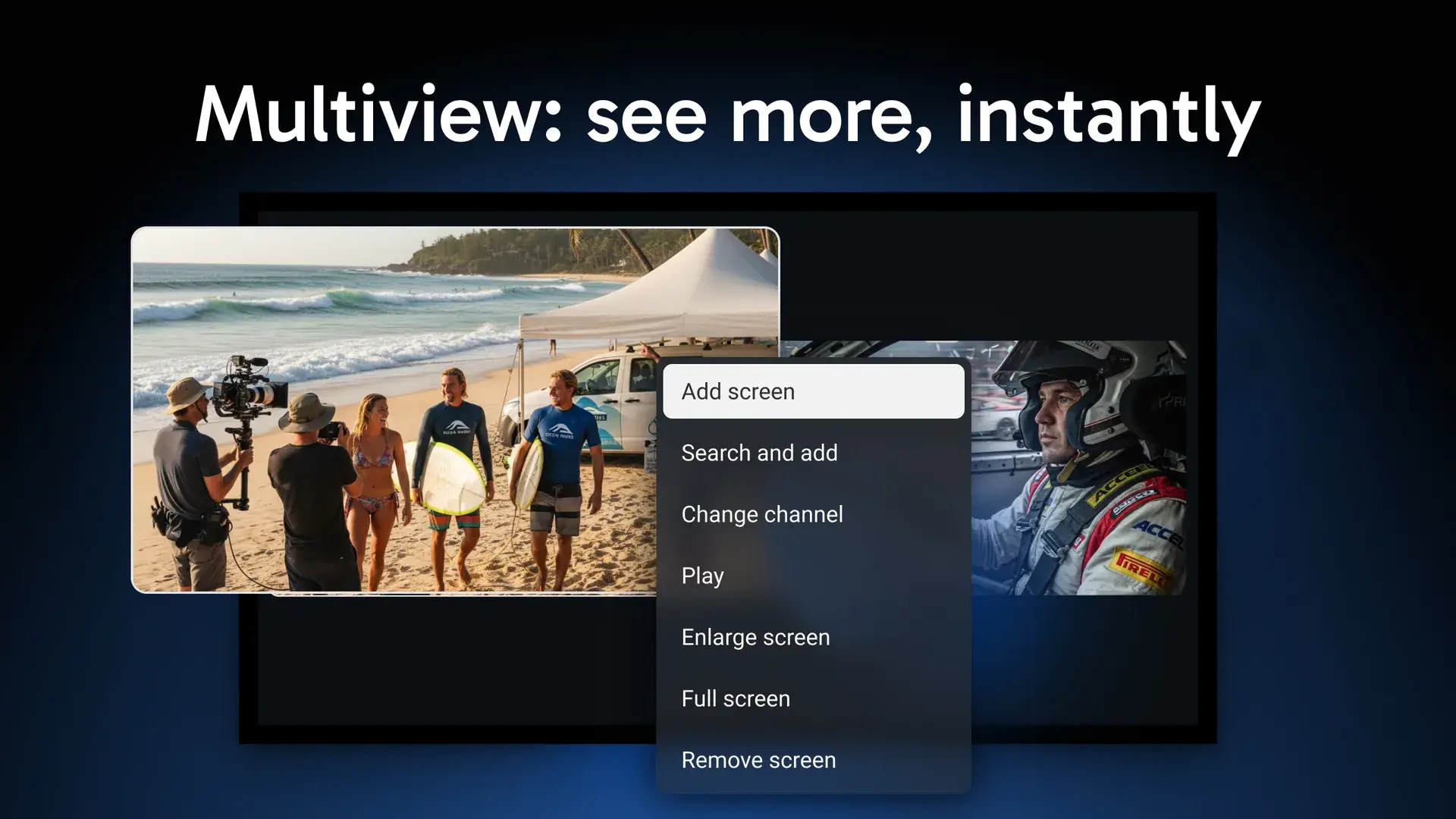
| Multi-Screen | ❌ No | Up to 4 Channels at Once |
| Favorites Management | Limited | Unlimited + Custom Groups |
| Catch-up & Recording | ❌ No | ✅ Yes |
Step-by-Step: How to Install TiviMate IPTV Player
Since TiviMate is highly optimized for large screens, the installation method depends heavily on the operating system of your streaming device.
1. How to Install on Amazon Firestick / Fire TV
Because TiviMate is not hosted on the standard Amazon Appstore, you must side-load the official APK file using the Downloader application:
Go to Settings ➡ My Fire TV ➡ Developer Options. (Note: If you don’t see Developer Options, go to About and click on your Fire TV Stick name 7 times).
Enable Apps from Unknown Sources for the Downloader app.
Open the Downloader App and enter the official direct download shortcode: 272483 (or type the official link).
Click Go to download the latest APK version.
Click Install, then open the app.
📥 Download link: You can securely get the file via this official platform here: Download
2. How to Install on Android TV Boxes & Google TV
For devices like the Nvidia Shield, Chromecast with Google TV, or Xiaomi Mi Box, the process is incredibly straightforward:
Open the official Google Play Store on your TV device.
Search for “TiviMate IPTV Player”.
Click Install directly onto your hardware.
🚀 Looking for a Premium, Buffer-Free IPTV Subscription?
To get the absolute most out of your TiviMate Player, you need a high-speed server layout that includes premium live channels, movies, and automated EPG syncing. Click below to secure your high-quality connection today:
Subscribe Now
How to Set Up Your IPTV Playlist in TiviMate
Once the app is open, you need to map your provider’s credentials. We highly recommend using the Xtream Codes API protocol because it loads categories dynamically and prevents memory lag.
Launch TiviMate and click on Add Playlist.
Select Xtream Codes (or M3U playlist if your provider only gives you a single link).
Type in your Server URL exactly as given by your vendor (e.g.,
[http://example.com:8080](http://example.com:8080)). Ensure there is no forward slash (/) at the very end.Input your unique Username and Password (case-sensitive).
Check the box for Include VOD to cleanly generate movies and series.
Click Done and wait for the system to process the channels and Electronic Programme Guide (EPG).
Frequently Asked Questions (FAQ)
Q1: Is TiviMate IPTV Player legal?
Yes. TiviMate is entirely legal. It is a clean piece of software shell player available on the Google Play Store. It does not host, host-link, or sell any streaming content. Legality depends entirely on the playlist source you plug into it.
Q2: Why is my TiviMate buffering, and how can I fix it?
If you face micro-stutters, go to Settings ➡ Playback ➡ Buffer Size and switch it from Normal to Large. This forces TiviMate to securely cache a few extra seconds of raw video packets before rendering them to your screen, neutralizing minor network drops.
Q3: Can I install TiviMate on iOS, Windows, or Mac?
No. TiviMate is built strictly and natively for Android TV operating systems. For Apple devices or computers, you will need to look for alternative players such as IPTV Smarters Pro or GSE Smart IPTV.
Q4: How many devices can I activate with one Premium account?
A single TiviMate Premium account license allows you to activate and manage up to 5 separate streaming devices simultaneously using the TiviMate Companion application.
Why TiviMate?
Multiple playlists
Effortlessly manage and switch between your playlists
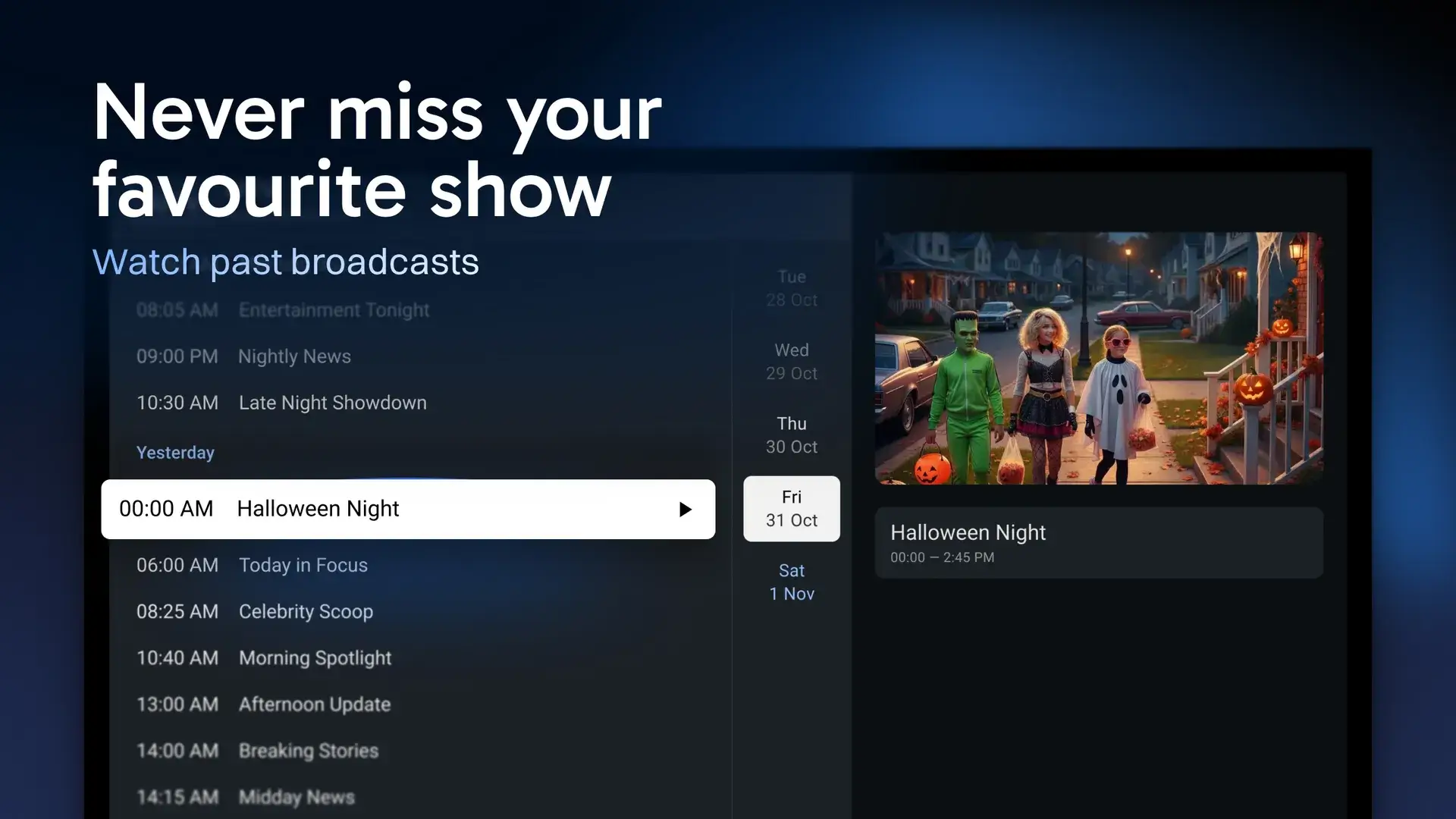
Catch-up
Never miss a show again with convenient access to past broadcasts
Favorite channels
Bookmark your most-watched channels for instant access
Recording
Record your favorite shows to watch them later
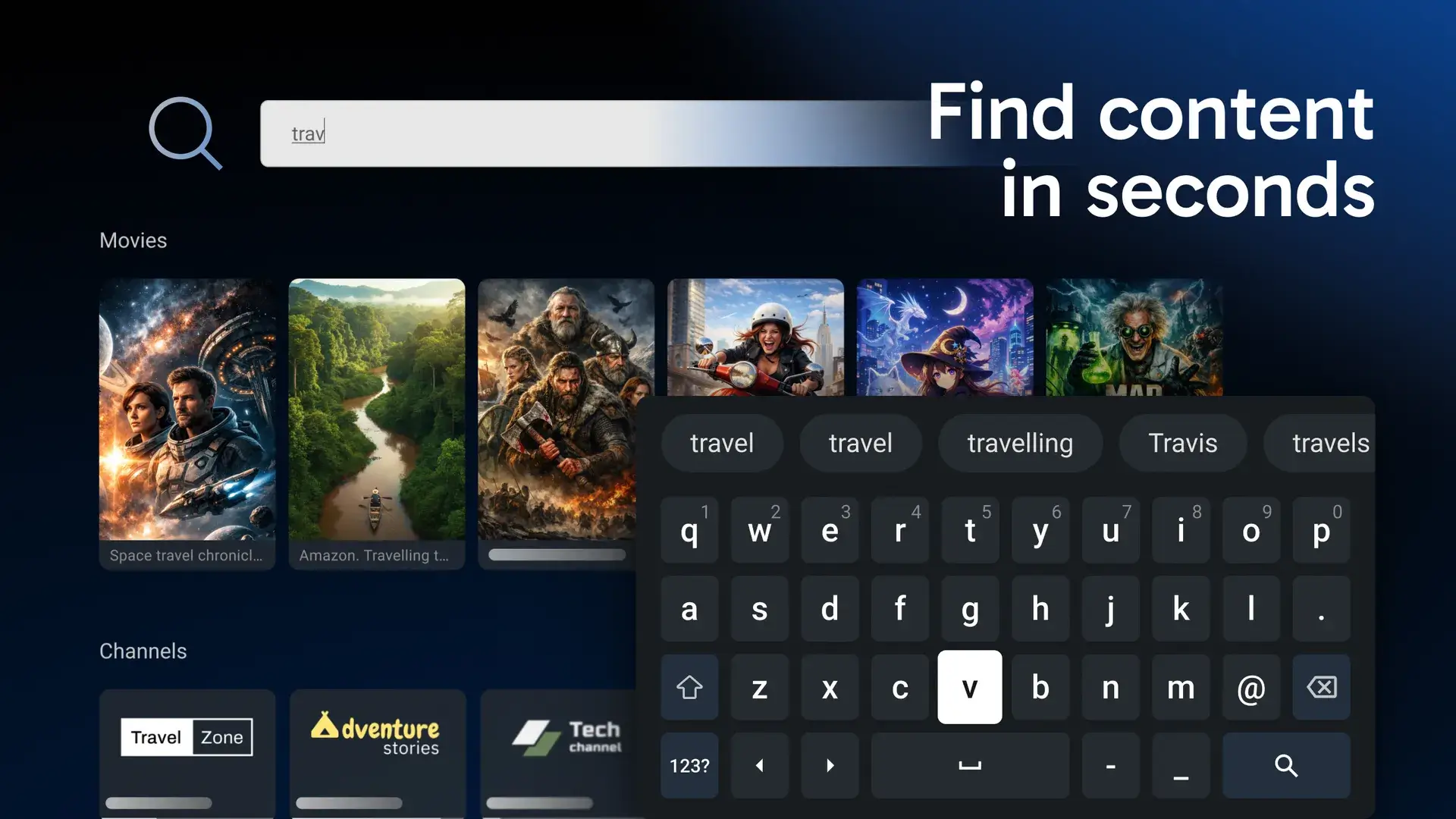
Search
Find channels and shows instantly with intuitive search
Parental controls
Manage access with ease, ensuring a safe viewing environment
Multiview
Watch different channels simultaneously on the same screen
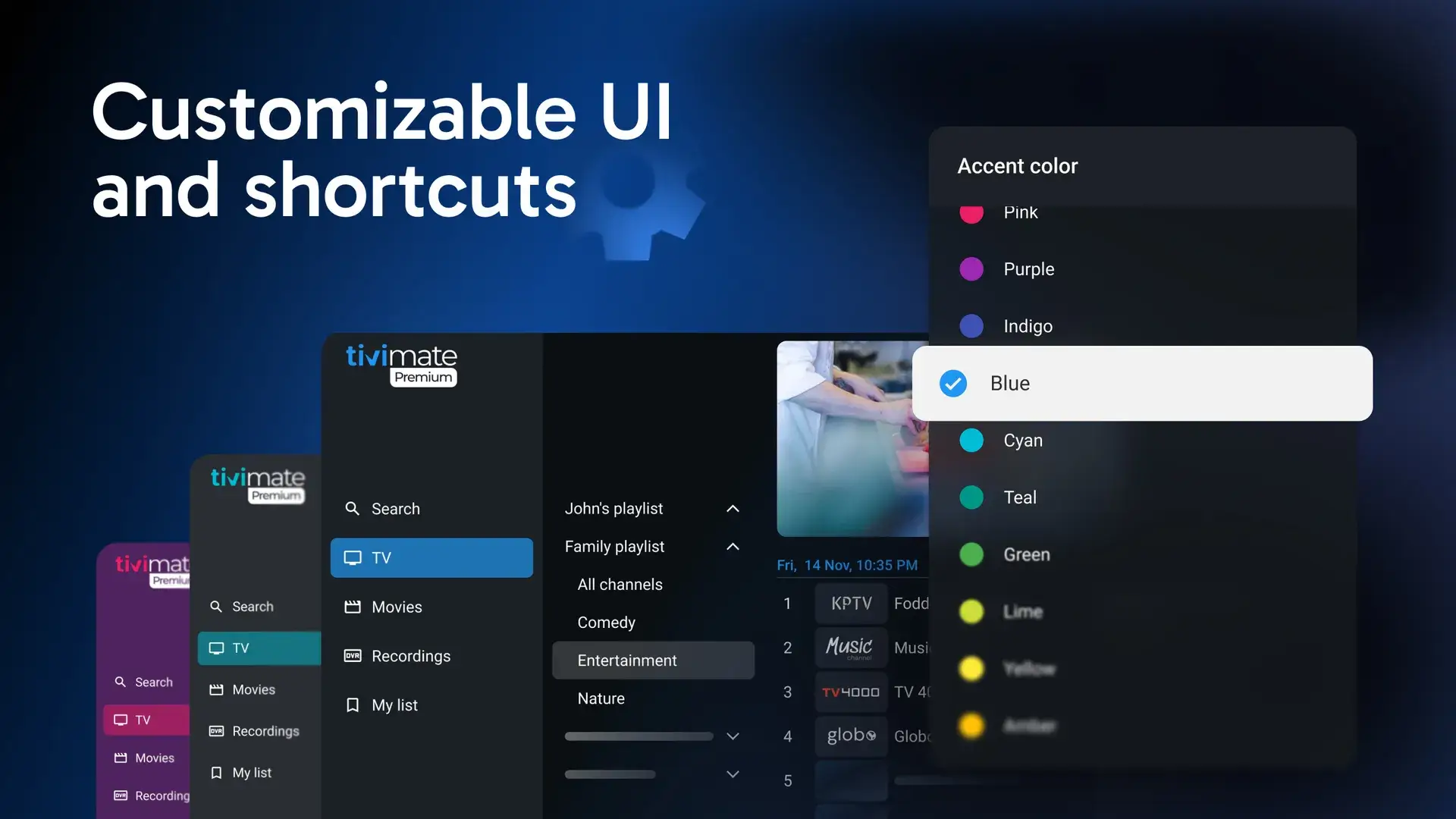
Personalization
Adjust the app’s look and layout to your preferences