
IPTV Smarters Pro: Best Ultimate Setup and Installation Guide (2026)
If you are looking for the absolute best way to stream live TV, movies, and video-on-demand (VOD), you have likely heard of IPTV Smarters Pro. It is arguably the most popular and widely-used media player layout in the world. With its incredible user interface, support for multiple playlists, dynamic electronic program guides (EPG), and parental controls, it turns any basic screen into a high-end streaming theater.
In this ultimate, expert-tested tutorial, we will show you exactly how to download, install, and securely configure the IPTV Smarters Pro app on any device in 2026 without face-planting into common technical buffering loops.
What is IPTV Smarters Pro? (Crucial Disclaimer)
Before we jump into the setup phase, you must know that IPTV Smarters Pro is purely a video player. It acts as an empty shell framework. The software creators do not host, sell, or stream any channels, movies, or sports packages. To stream content, you must hook it up to a premium, high-speed IPTV provider playlist using your secure subscription log-in info.
| Feature Component | Free Version | Premium Version (In-App) |
| Playlist Protocol | M3U Link & Xtream API | M3U Link, Xtream API, & Mac Address |
| Multi-Screen Function | ❌ No | ✅ Stream up to 4 channels at once |
| Master Search Engine | Basic | ✅ Advanced Global Search |
| EPG Source Mapping | 1 EPG Source | Unlimited EPG Syncing |
| External Players Integration | ❌ No | ✅ Support for VLC/MX Player |
Step-by-Step: How to Install IPTV Smarters Pro on Every Device
Because this app is cross-platform, the deployment mechanism shifts significantly depending on your hardware environment. Follow the exact custom flow-charts below:
1. Amazon Firestick & Fire TV Cube (Sideload Method)
The official app store often hides media players. To bypass this restriction safely, we deploy via the Downloader system utility:
- Click on Settings ➡ My Fire TV ➡ Developer Options. (Note: If Developer Options is missing on your device layout, go to About and click on your Fire TV Stick hardware name exactly 7 times to unlock it).
- Select Apps from Unknown Sources and switch it to ON for the Downloader application.
- Open Downloader, highlight the address bar, and type the official APK downloader shortcut code: 608144 (or paste the direct server URL).
- Hit Go to pull down the verified setup file package.
- Click Install, confirm the secondary security check, and choose Open.
📥 Direct APK Access Link: You can immediately secure the official file release here: Download
2. Android TV, Chromecast, & Android Mobile Devices
For hardware using native Google ecosystems (such as the Nvidia Shield, Sony TVs, or Samsung/Google phones), you don’t need any complex workarounds:
- Launch your official Google Play Store.
- Type “IPTV Smarters Pro” (or look for its alternative official developer skin name Smarters Player Lite).
- Select the official logo build and click Install.
- Open the application directly from your home UI page.
📥 Direct APK Access Link: You can immediately secure the official file release here: Download
🚀 Need a Premium, Non-Freezing IPTV Subscription?
Running IPTV Smarters Pro with a slow, low-tier server will only result in endless buffering, pixelated sports, and out-of-sync audio. To fully experience flawless 4K and Full HD streams on your setup, upgrade your service line today. Click below to secure your elite subscription line instantly:
3. Apple iOS (iPhone, iPad) & Apple TV (tvOS)
Apple manages their app catalog under tight guidelines. Thankfully, you can find the application listed natively:
- Open the official Apple App Store on your mobile hardware or Apple TV box.
- Search for “Smarters Player Lite” (the official, compliant alternative brand name developed directly by WHMCS Smarters).
- Tap Get to authenticate using your FaceID/Password and download the client software.
📥 iOS Apple Store Link: Skip the App Store search layout and load it directly here: Download
4. Windows PC (11/10) & Apple macOS Computers
If you want to monitor your channels from a desktop setup or a laptop workstation, running the application natively provides incredible zapping speeds:
- Download the official desktop setup application file bundle (
.exefor Windows or.dmgfor Mac systems). - Double-click the file package wrapper to initialize the automated install wizard.
- Accept the user licensing terms, choose your destination folder framework, and click Finish.
📥 Windows Desktop Link: Download the official standalone application app here: Download
📥 Apple macOS Desktop Link: Secure your Apple computer layout framework setup here: Download
How to Configure Your Playlist via Xtream Codes API (Best Method)
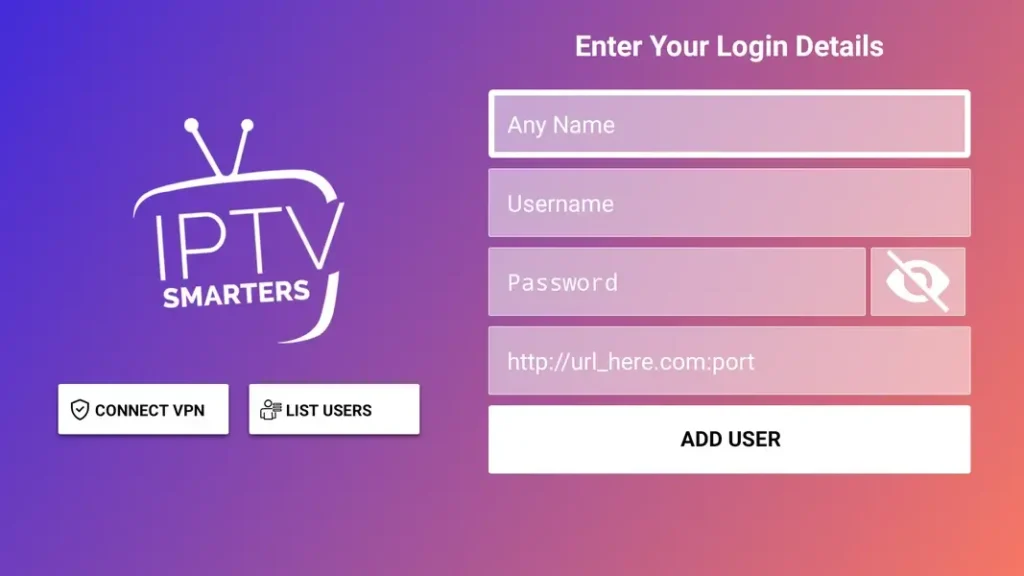
Once the application launches, you will see a screen with multiple login methodologies. While it supports traditional M3U lines, we highly advise logging in with Xtream Codes API. This modern API optimizes memory caching and structures your categories properly so your device doesn’t crash from data overload.
- Click on “Login with Xtream Codes API”.
- In the first text slot, type any placeholder title name you want (e.g.,
My Premium IPTV Line). - Carefully copy and paste your unique Username and Password credentials supplied by your vendor vendor.
- Input the official Portal Server URL structure exactly as formatted (e.g.,
[http://line.providerurl.com:8080](http://line.providerurl.com:8080)). Ensure there are absolutely no spaces or excess forward slashes at the end. - Click on Add User, and allow the software a few moments to dynamically populate your live channels, EPG metadata indexes, and video-on-demand databases.
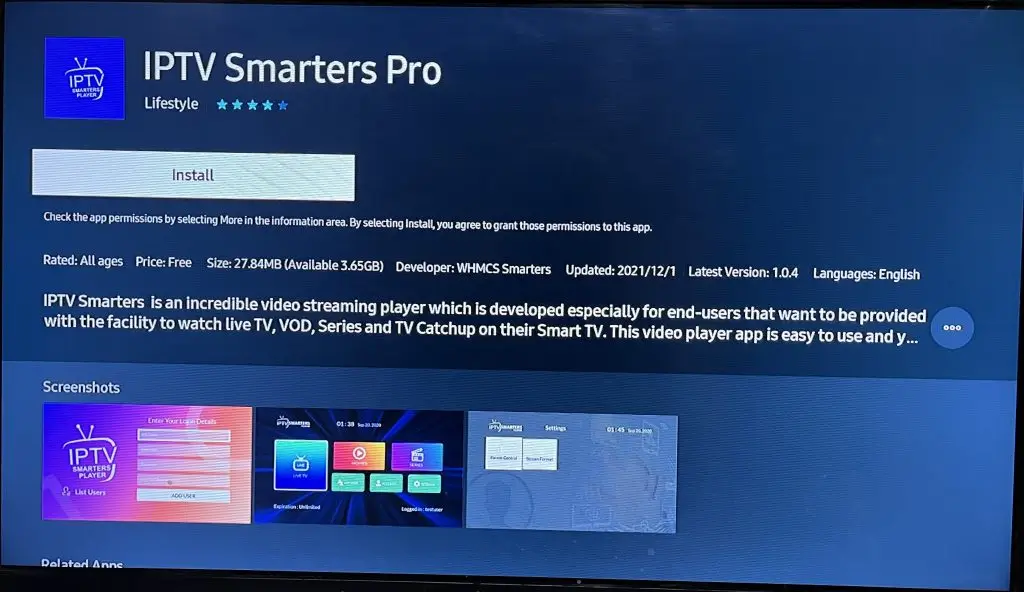
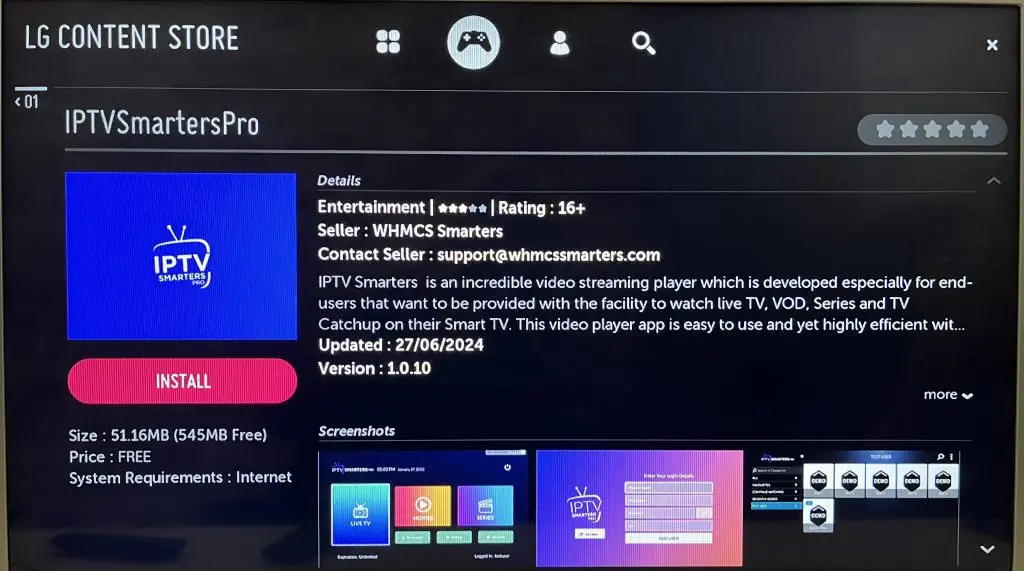
IPTV Smarters is an incredible video streaming player which is developed especially for end-users that want to be provided with the facility to watch live TV, VOD, Series and TV Catchup on their Smart TV. This video player app is easy to use and yet highly efficient with a powerful player, attractive and very impressive layout and most importantly user-friendly.
7. How to Install IPTV Smarters Pro on Samsung Smart TV (Tizen OS)
If you own a Samsung Smart TV running Tizen OS, you do not need an external streaming stick. The application layout is available natively within the official store system:
- Press the Home button on your Samsung TV remote layout control.
- Navigate left to select the official Apps Store icon.
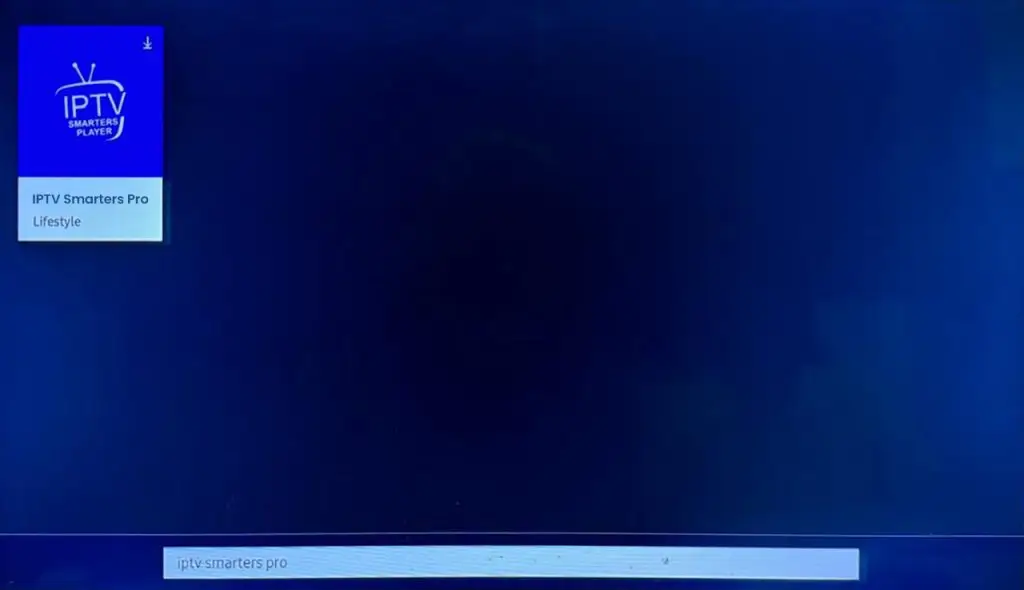
- Click the search magnifying glass and type “IPTV Smarters Pro” (or look for Smarters Player Lite if the primary name varies by region).
- Select the correct app build and click Install / Download.
- Once the download process finishes, launch the player directly onto your home grid matrix and input your dynamic login line credentials.
Step 3: Log In to the App
Open the application and log in using your subscription details: Username, Password, and Portal URL.
Important Note:
Ensure that your service provider has their DNS registered with us for optimal performance
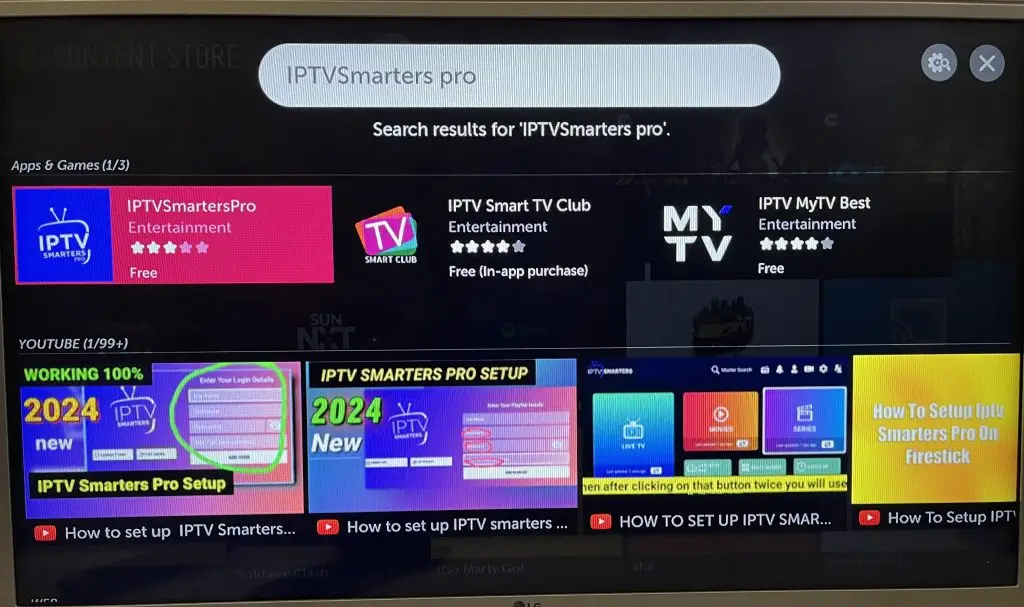
8. How to Setup IPTV Smarters Pro on LG Smart TV (webOS)
For users running LG hardware platforms powered by webOS, installing the application wrapper package takes less than two minutes:
- Grab your Magic Remote and launch the LG Content Store (or LG App Store on newer firmware versions).
- Highlight the top search interface slot and input “IPTV Smarters Pro”.
- Select the official media player build from the developer category.
- Click Install to deploy the player framework safely to your internal TV memory storage.
- Open the app interface from your home carousel, choose your preferred login protocol, and load your playlist setup.
Step 4: Log In to the Application
Open the application and log in using your subscription details: Username, Password, and Portal URL.
Important Note:
Please ensure that your service provider has their DNS registered with us for optimal performance.
Frequently Asked Questions (FAQ)
Q1: Is downloading IPTV Smarters Pro legal?
Yes. Downloading and utilizing the IPTV Smarters Pro application is 100% legal globally. The software shell is legally distributed through major platforms like the Google Play Store and Apple App Store. The core legal responsibility rests entirely on you—the user—to ensure the third-party playlist service you purchase is properly authorized to distribute the streams in your specific country.
Q2: Why does my IPTV Smarters Pro say “Login Failed”?
If you run into this error frame, check three common human mistakes: First, ensure your subscription line hasn’t expired. Second, verify there are no accidental capital letters or spaces in your server address line. Third, verify if your service provider blocks certain regions; if so, turning on a high-speed VPN layer can instantly resolve connection handshakes.
Q3: How do I clear the cache to stop video buffering?
Over time, data streams build up system debris. To clean this out on Android/Firestick devices: Go to Settings ➡ Apps ➡ Manage Installed Applications ➡ IPTV Smarters Pro ➡ click Clear Cache. Never click Clear Data unless you want to completely erase your saved username credentials and start fresh.
Q4: Can I use the same account details on multiple active hardware setups?
Your media player software doesn’t care how many devices it is installed on, but your IPTV subscription line protocol does. Most basic vendors restrict you to one active connection link. If you stream on your living room Firestick and your bedroom tablet simultaneously using a single-connection subscription, one of the two devices will instantly loop, freeze, or block your IP address layout.